
Many users have recently reported in the community websites that they encountered the “Microsoft Excel Access denied. Contact your administrator” error when trying to open, save, or edit XLS/XLSX files. It usually occurs in shared environments, such as corporate networks or systems with tight security controls. In this blog, I will explore the common causes and some workable solutions on how to fix access denied contact your administrator in Excel to maximize Excel’s functionality.

To fix corrupted Excel files, we recommend this tool:
This software will prevent Excel workbook data such as BI data, financial reports & other analytical information from corruption and data loss. With this software you can rebuild corrupt Excel files and restore every single visual representation & dataset to its original, intact state in 3 easy steps:
- Try Excel File Repair Tool rated Excellent by Softpedia, Softonic & CNET.
- Select the corrupt Excel file (XLS, XLSX) & click Repair to initiate the repair process.
- Preview the repaired files and click Save File to save the files at desired location.
What Causes Access Denied Contact Your Administrator Error in Excel?
Fixing Excel runtime errors after extracting reasons is a crucial step in accessing workbooks seamlessly. Here are a few major reasons for this error:
- Due to a damaged Windows user profile
- Restricted file permission
- Excel workbook or worksheet corruption
- Antivirus or firewall blocking Excel
- MS Excel file is locked by another user
- Using an outdated Excel version
- Windows or Office updates pending.
As you have extracted the common causes, now it’s time to implement the possible fixes to overcome this problem.
How to Fix Access Denied Contact Your Administrator in Excel?
Follow the tricks below to deal with this situation.
Way 1- Restore from a Recent Backup

The very straightforward method you can try is restoring from a backup. If you’ve the recent backup (extra copy) of the faulty workbook, simply restore data from that backup. But in the absence of backup, try further solutions to fix MS Excel access denied contact your administrator.
Way 2- Check the Excel File Permission
Insufficient permission to access the file can sometimes lead to access denied error. In such a situation, you can try verifying and providing the right permissions to the file.
Here is how you can do so:
- Open File Explorer by pressing Windows + E keys.
- Navigate to the folder where the affected Excel document is stored >> right-click on it.
- Then, click on Properties >> ‘Security’

- Now, click on Edit.
- In Security window, you have to click on user names under ‘Group or user names’.
- Allow all the necessary permissions >> click Apply >> OK.
Also Read: Fix Excel “This Workbook Cannot Be Shared Because Privacy Has Been” Error
Way 3- Fix Access Denied Contact Your Administrator by Disabling Antivirus Temporarily
As already mentioned above, an Antivirus or firewall may block the Excel and prevent the file from accessing it.
Follow the steps below carefully to disable Antivirus or firewall:
- Go to Start >> type Windows Security >> hit Enter to open the app.
- Navigate to Home Tab >> click Firewall and Network Protection >> disable it.
- When done, click on Virus and Threat Protection >> Manage Settings.

- Disable the Real Time Protection
- Now, try to access the Excel file again.
Important Note: Always re-enable your antivirus after testing.
Way 4- Update MS Excel Program
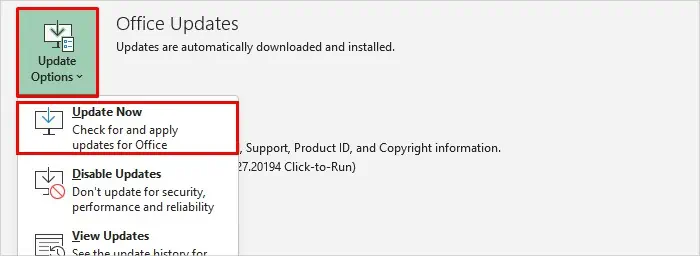
Using an outdated version of the Office app can cause this error message when trying to access the file. To fix this error, check if the app is updated or not. If not, update it by following the steps below:
- Go to the File menu >> Account option.
- Next, click on Office Updates >> Update Now.
Way 5- Run Excel in Safe Mode
Sometimes, a corrupted or faulty add-in may conflict with the Excel program and cause various errors, including MS Excel access denied contact your administrator error.
To tackle this problem, open Excel in safe mode by following the instructions below carefully:
- Press Windows + R keys to open the RUN dialogue box.
- Next, type excel /safe >> hit Enter.

- Now, you can try opening the file. This will immediately disable the add-ins or extensions that are likely the culprit.
Way 6- Unblocking the Excel File
Unlocking the Excel file is another quick resolution to eliminate this warning message. For this:
- Go to the location where the faulty XLS/XLSX file is stored.
- Right-click on the file.
- Click on Properties.
- If you see an Unblock button, click it.

- Finally, hit Apply >> OK.
Also Read: Excel Error “To Do This All Merged Cells Need to Be of the Same Size” Easily!
Way 7- Repair Microsoft Office
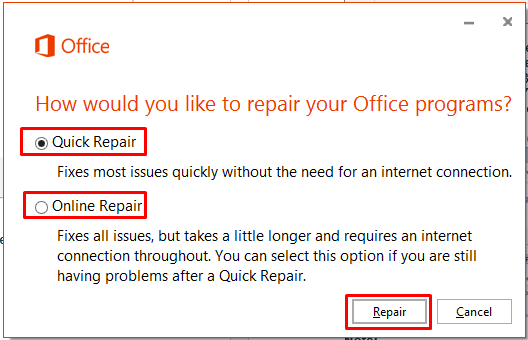
If none of the above solutions worked, you can try repairing the MS Office. Here are the complete steps to be followed:
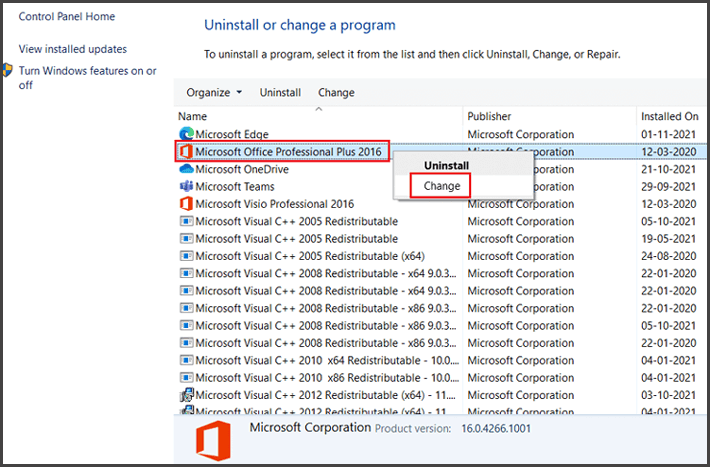
- Go to Control Panel > click on Programs > Programs and Features.

- Locate & click on Microsoft Office >> click Change.
- Select Quick Repair or Online Repair.
Way 8- Create a New User Profile
Last but not least, you can create a new user profile to get access to the Excel file
- Create a new Windows user account.
- Log in and open the Excel file.
- If it works, your old profile is likely corrupted.
Try Automated Solution- Excel Repair Tool
If you are facing access denied contact your administrator in Excel due to a severely corrupted workbook, use an expert Excel Repair & Recovery Tool. It can repair a highly corrupted Excel file and recover all its objects by maintaining the original formatting.
Furthermore, you can download a free demo version of this tool to preview the fixed objects & verify its functionality.
Prevent Future Access Denied Issues
- Avoid saving files in restricted folders.
- Keep Office and Windows updated.
- Regularly back up files.
- Use trusted antivirus tools with proper configuration.
- Educate users about file-sharing best practices.
Frequently Asked Questions:
How Do I Remove Access Denied in Excel?
If you want to remove Access denied in Excel, follow the steps below:
- Click on Start >> Run, then type regedit >> click OK.
- Find and select one registry subkey.
- Go to Edit menu >> New. After this, click DWORD (32-bit) Value.
- Type EnableSimpleCopyForSaveToUNC >> press ENTER.
Why Did I Lose Access to Microsoft Excel?
It might be possible that your device isn't connected to your company or organization's network.
How to Resolve Microsoft Excel Cannot Access the File?
To resolve the Microsoft Excel cannot access the file error, try the following tips:
- Check the File Name & Path.
- Update Microsoft Excel.
- Try Clearing the MS Office Cache.
- Turn OFF Protected View.
- Check & Disable Add-ins.
- Check the File permissions.
Packing Up
The “MS Excel Access Denied Contact Your Administrator” error can be annoying, but it’s usually easy to fix with the right steps. Above, I have mentioned the working tricks to tackle this situation. Start with basic permission checks and escalate only if necessary. This ensures you restore access swiftly without losing data.
I hope you liked this blog.

Priyanka Sahu

Priyanka is a content marketing expert. She writes tech blogs and has expertise in MS Office, Excel, and other tech subjects. Her distinctive art of presenting tech information in the easy-to-understand language is very impressive. When not writing, she loves unplanned travels.