
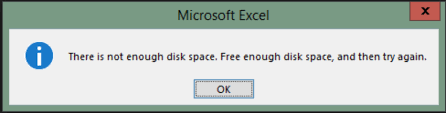
Is your spreadsheet showing “There is not enough disk space. Free enough disk space, and then try again.”? If so, do not fret; it often occurs when MS Excel needs more disk space to save the file, or when your drive is full. However, the error can be easily fixed by clearing temp files (%temp%), closing background running apps, or trying other solutions mentioned here.
So, let’s get started…
To fix corrupted Excel files, we recommend this tool:
This software will prevent Excel workbook data such as BI data, financial reports & other analytical information from corruption and data loss. With this software you can rebuild corrupt Excel files and restore every single visual representation & dataset to its original, intact state in 3 easy steps:
- Try Excel File Repair Tool rated Excellent by Softpedia, Softonic & CNET.
- Select the corrupt Excel file (XLS, XLSX) & click Repair to initiate the repair process.
- Preview the repaired files and click Save File to save the files at desired location.
What Does It Mean When Excel Says There Is Not Enough Disk Space?
When Excel says there is not enough disk space, it means the storage becomes limited, or the workbook size is larger than the normal file size for saving. This error message may also occur when exporting files to Microsoft OneDrive.
Nevertheless, the issue doesn’t always mean your drive is full; it is likely that your temporary files consume hidden space.
Major Factors of this Error
Numerous reasons can contribute to this error. Understanding the roots is important in finding an effective resolution.
- Handling a large Excel file with many sheets.
- Insufficient disk space.
- Running unnecessary apps in the background.
- Due to corrupted cache files, block normal operations.
- Corrupted Excel workbook.
- Corrupted Add-ins or Office installation files.
- Outdated Excel software.
Now, scroll down to the next section to know the possible fixes.
How to Solve Microsoft Excel There Is Not Enough Disk Space Error?
Ensure to follow the below fixes in the order they’re presented.
Solution 1- Free Up Disk Space
Since the error is causing due to insufficient disk space, it is vital to check your available storage. To do so, follow the instructions below carefully:
- Press Windows + E to open File Explorer.
- Then, right-click on the system drive >> select Properties.
- If the space is low, then delete unnecessary files.
Also, try emptying the Recycle Bin to gain enough space to operate smoothly.
Solution 2- Delete Temporary Files
Another workable solution you can try is deleting the temporary files. MS Excel or any other application creates hidden temporary files during use.
So, timely clearing of such temp files helps to fix and avoid future problems in the PC.
To remove them, follow the steps below:
- Press Windows + R to open Run box >> type %temp%.
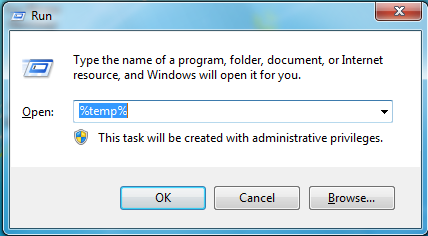
- Hit Enter. This will open the Temp folder.
- Delete all the visible temporary files.
Later, restart your computer. Now open Excel and test the file again.
Solution 3- Close Background Apps
Getting there is not enough disk space free enough disk space and then try again Excel error due to running unnecessary background applications? If so, immediately close the needless applications of the PC to overcome this situation.
Steps to be followed:
- Press Ctrl + Shift + Enter keys to open Task Manager.
- In Process tab, right-tap on the non-essential apps >> select End task.

Solution 4- Saving File on Another Local Disk
Many users have reported in the community sites that they fixed this warning message by saving the Excel file to another local drive. To save the file to another location, go to File > Save as and select another destination to save the file.

It is estimated that you can now access the file without any difficulty.
Solution 5- Disable the Excel Add-Ins
As we all know that, Add-ins consume extra system resources sometimes, they interfere with file saving. All you need to do is to disable the faulty Excel add-ins to overcome the situation.
- Open Excel, navigate to “File” tab >> Options.
- In the ‘Excel Options’ window, click Add-Ins.
- Next, select COM Add-ins from a ‘Manage’and hit on Go.

- Now, uncheck the add-ins one by one from the COM Add-ins >> hit OK.
Solution 6- Check Hard Drive for Errors to Fix Microsoft Excel There Is Not Enough Disk Space
Hard drive corruption is another foremost reason that can limit storage functionality and file saving act. Therefore, scan the drive immediately for errors.
Here are the steps:
- Open Command Prompt as Administrator.

- Then, type chkdsk /f & press Enter.
- Confirm the scan if prompted and restart your PC to begin scanning process.
- The system will fix disk errors automatically.
- After completion, open Excel again.
Solution 7- Update an Excel Software
Are you using an outdated version of Excel? If so, it could be the reason for the problem. Consider updating the Excel software version to deal with the problem effectively.
Follow these steps:
- Open Excel >> click File >> “Account” option.
- After that, click on a “Product Information” >> click “Updates Options.”
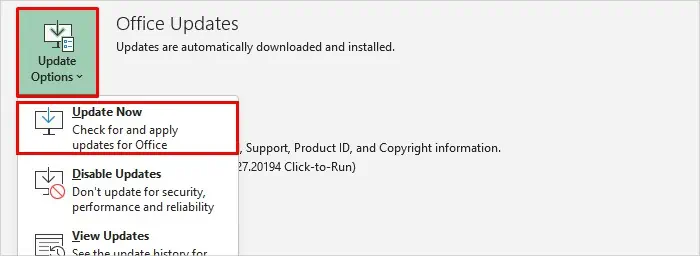
- Finally, click on “Update Now.”
Solution 8- Repair Microsoft Office Installation
If the above solutions fail to resolve, there is not enough disk space free enough disk space and then try again Excel error, repair the Office suite.
- Open Control Panel >> click Programs and Features.
- Locate Microsoft Office in the list and right-click to choose Change.
- Then, select Quick Repair.
- If the issue remains, choose Online Repair.
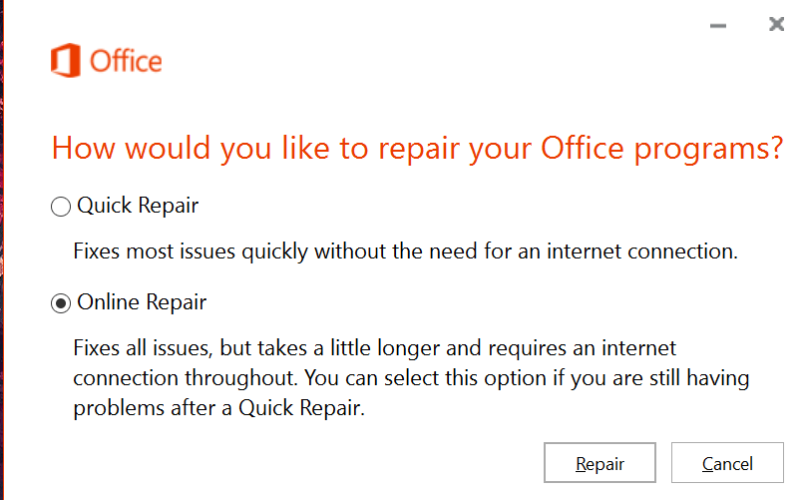
- After completion, restart your computer.
Solution 9- Use the Excel Repair Tool
Apart from the above manual fixes, you can even try the expert’s recommended option i.e., MS Excel Repair Tool. It is highly competent in repairing corrupted Excel files and restores worksheet data like cell comments, charts, and worksheet properties easily.
Moreover, it is specially designed to fix corrupt .xls and .xlsx files with 100% integrity.
Steps to Utilize MS Excel Repair Tool:







Related FAQs:
Due to excessive temp files or corrupted cache files, Microsoft Excel keep saying disk is full.
If you’ve worksheets with data that you are not using and that don't contain any formulas you're using—remove them from the spreadsheet.
To clear the Excel cache, navigate to File >> Options >> Save. Then, scroll to Cache Settings >> click Delete cached files and confirm in the pop-up to remove temp files.
You can free up disk space without deleting by saving new personal files to another drive. Why Does Excel Keep Saying Disk Is Full?
How Do I Free Up Disk Space on Microsoft Excel?
How to Clear Excel Cache Memory?
How to Free Up Disk Space Without Deleting?
Wrapping Up
Microsoft Excel there is not enough disk space free enough disk space and then try again error can be frustrating. But with an accurate solution & proper attention, it can be resolved effectively.
Though, by applying the troubleshooting methods stated in this blog, you can troubleshoot this warning message & maximize the efficiency of your workflows.
Moreover, feel free to ask your queries by visiting our Facebook & Twitter accounts. I love to hear from you!

Priyanka Sahu

Priyanka is a content marketing expert. She writes tech blogs and has expertise in MS Office, Excel, and other tech subjects. Her distinctive art of presenting tech information in the easy-to-understand language is very impressive. When not writing, she loves unplanned travels.