
While working with an Excel spreadsheet, you may receive “run time error ‘- 2147 automation error.” This warning message usually occurs when macros, VBA scripts, or external add-ins fail to execute properly. But the good news is that you can troubleshoot it quickly by following the right solutions. In this post, you will learn all the possible ways to fix the runtime error 2146 automation error in Excel in no time.

To fix corrupted Excel files, we recommend this tool:
This software will prevent Excel workbook data such as BI data, financial reports & other analytical information from corruption and data loss. With this software you can rebuild corrupt Excel files and restore every single visual representation & dataset to its original, intact state in 3 easy steps:
- Try Excel File Repair Tool rated Excellent by Softpedia, Softonic & CNET.
- Select the corrupt Excel file (XLS, XLSX) & click Repair to initiate the repair process.
- Preview the repaired files and click Save File to save the files at desired location.
What Causes Automation Error 2146 in MS Excel?
Well, the automation error -2146232576 (80131700) is a VBA-related error. It often appears when Excel cannot run a command or when an object is missing.
Besides, there are some other reasons as well that can trigger this error, including:
- Corrupted/outdated Excel add-ins
- Conflicts with ActiveX controls
- Damaged VBA references or missing libraries
- Running outdated MS Office updates
- System file corruption in Windows
Identifying the exact cause is essential before applying a fix.
Workarounds to Fix Runtime Error 2146 Automation Error in Excel
Here are proven solutions to try to resolve the error:
Method 1- Check the VBA References
The very first step you need to take to solve the 2146 error is to check the VBA references. Incorrect or missing VBA references can trigger automation errors. To check the references, follow the steps below:
- Open Excel.
- Press Alt + F11 keys together to open the VBA editor.
- Click on Tools >> References.

- Now, look for the “Missing” references & uncheck them.
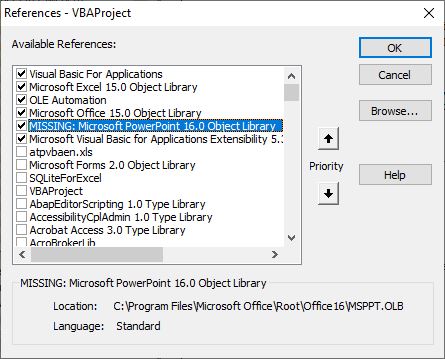
- Re-add the correct library if required.
Method 2- Repair Corrupted System Files
As already mentioned in the causes section, corruption in the system files is one of the foremost reasons for the occurrence of this error. To fix it, try to run an SFC scan and repair the Windows system files.
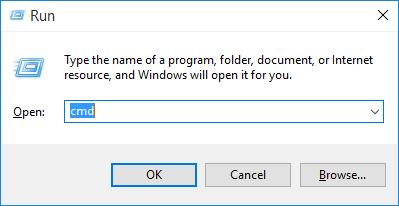
- Press the Windows + R to open a Run box.
- Then, type in CMD >> hit Enter.
- Once the command prompt window opens, simply type sfc/scannow& hit Enter.
- As soon as the process is over, restart your PC and check for the error.
Method 3- Disable Faulty Add-ins
Sometimes, faulty add-ins can be a problem and cause various errors, including runtime error 2146 automation error in Excel. To check for the faulty add-ins and disable them, follow the steps below:
- Hold a CTRL key >> click on an application until it asks for safe mode >> then release the CTRL key.
- Launch the Excel application.
- Click on Options >>Add-ins
- Find a Manager: Excel Add-ins, besides it simply click on Go.
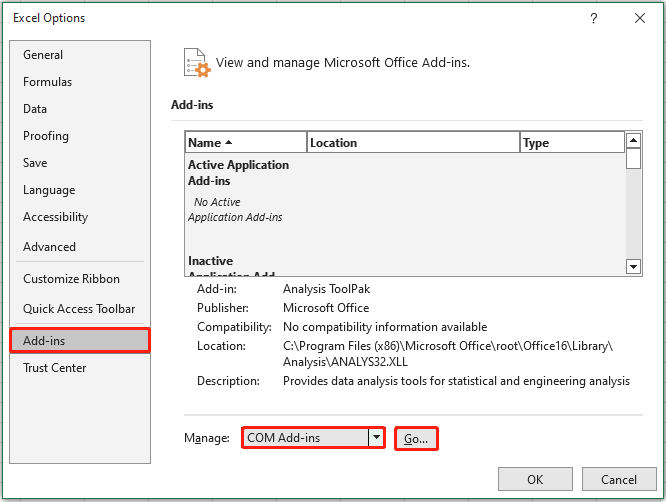
- Now, uncheck Add-ins to disable them & afterward enable them.
Method 4- Re-register DLL Files
Re-registering the DLL files is another working solution to tackle such runtime errors in Excel. Automation errors may occur if mandatory DLLs aren’t registered.
- Open Command Prompt as administrator.
- Then, run the below command:
regsvr32 mscomctl.ocx
- After completion of this process, restart the Excel application and check if the error is solved.
Method 5- Fix Runtime Error 2146 Automation Error by Updating Excel
If you are using an outdated version of MS Office or MS Excel application, it can be the reason for this annoying error. Therefore, ensure your MS Office or MS Excel version is up to date.
Here’s how you can do so:
- Go to File menu >> Account >> Update Options.
- Choose the Update Now.
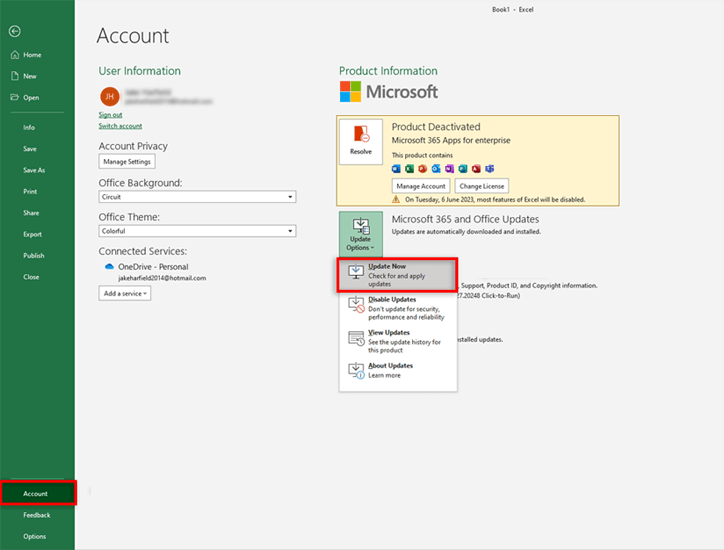
- Install the latest patches & restart Excel.
Method 6- Repairing Microsoft Office
Last but not least, if none of the above solutions worked, try repairing the MS Office on your own.
Here are the steps to be followed:
- Open the Control Panel.
- Go to Programs > Programs and Features.

- Select Microsoft Office and click Change.
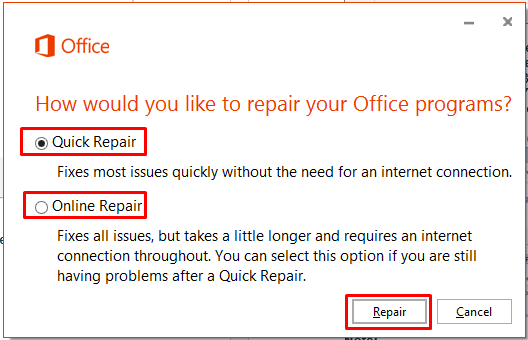
- Choose Quick Repair first, then try Online Repair if needed.
Try Advanced Solution: Excel Repair Tool
Looking for an instant way to solve automation error -2146232576 (80131700)? You can try the professionally recommended MS Excel Repair Tool to repair corrupted, damaged, and inaccessible Excel files.
This repairing utility can easily restore everything which including cell comments, charts, worksheet properties, and other related data from a corrupted Excel document.
Frequently Asked Questions:
To fix the Automation error in Microsoft Excel:
To automatically correct errors in Excel, choose File menu > Options > Proofing. Choose AutoCorrect Options >> choose the most likely typing errors.
To enable automation in Excel, go to Manage, click on Excel Add ins >> click Go. In the Add-Ins dialog box, choose Automation. In the list of registered COM servers, you have to click your Automation Add-in >> click OK. How to Fix Automation Error in Excel?
How to Automatically Correct Errors in Excel?
How to Enable Automation in Excel?
Closure Time
After following the approaches specified in this blog, you can solve runtime error 2146 automation error in Excel. However, I tried my best to provide appropriate info about this warning message & its fixes.
Though, if you’re getting this error due to a corrupt workbook, it is suggested that you try an advanced Excel Repair Tool. This will ultimately repair the corrupted Excel file and solve this error.
For further queries & doubts, visit our official Facebook page.

Priyanka Sahu

Priyanka is a content marketing expert. She writes tech blogs and has expertise in MS Office, Excel, and other tech subjects. Her distinctive art of presenting tech information in the easy-to-understand language is very impressive. When not writing, she loves unplanned travels.