
Many professional writers prefer Microsoft Word to prepare content for better accessibility. But when it comes to handling tables, financial reports, numbers, and complex data, MS Word is not effective. In such instances, it is worth converting the Microsoft Word to an Excel document and manipulating data. Well, in this blog, I will explore how to import data from Word to Excel document in a hassle-free manner.
So, let’s get started…
Can I Extract Data from A Word Document to Excel?
Yes, you can extract data from a Word document to Excel.
However, importing data from MS Word to Excel can be accomplished using a few different ways mentioned in this post, depending on the structure of the data in your Word file.
Methods to Import Data from Word to Excel
Here are some easy tricks to import Word documents into Excel.
Method 1. Single Cell Import
- Start Microsoft Excel > Open the Excel spreadsheet you need to import the word data into.
- After that click Insert tab > on the ribbon click Object button.
- Now on the object window click “Create from File” > browse MS Word document to import.
- Double-click the file name > click OK to close Object window. Now you are brought back to the Excel spreadsheet with a Word file merged into it.
Please Note: Below the ribbon the cell text box shows =EMBED (“Document”,””).
- Next double click within the Word document to open it and make it editable. Here the users can perform entire word features, even in Excel-like modifying or reformatting text.
- Click File tab > choose Save As > rename existing Excel spreadsheet in place of saving over it (doing this will keep the non-merged version accessible) > click Save button.

Also Read: Ways To Import Excel Contacts To iPhone
Method 2. Import Data by Copying & Pasting
To import the data cell by cell, follow the steps given below.
- Open MS Word > Open document with data table to import into Excel
- No click the small hatch marks in the table > press Ctrl + C to copy the table > close the Word document.
- Now open Excel > click the cursor into the first cell grid > hit Ctrl + V keys to paste the Word table’s contents. From Word into Excel with a similar cell layout, the data is exported. (For instance: if the Word table has two rows with three columns, then the Excel spreadsheet will show two rows with three columns. )
Well, this is all about how to import data from Microsoft Word to MS Excel
Method 3. Convert Word To Excel Using the “From Text” Option
If you are an Excel 2016 user then importing Word data to Excel is going to get easy for you. Excel 2016 application offers one very helpful feature i.e. “from text” to import or convert Word to Excel.
- Open your MS Word application first of all. After that go to the File option from the menu bar and then to the Save As option;
- From the drop-down list of output formats select the “Plain Text” format.
- After that tap on the “Save” option to save up your Word documents just like a new text file;
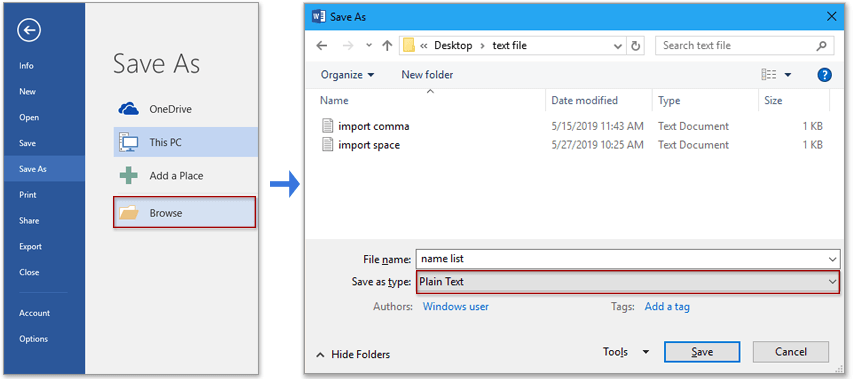
- Now run your MS Excel application. From the toolbar select the “Data” and tap to the “From Text” option for importing off the Word text;

- After that select the “Delimited” option from the Import Wizard.

- Make changes in the setting as per your need and then tap to the “Finish” option.
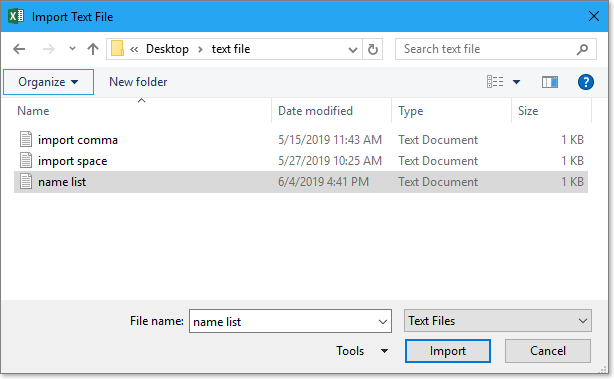
- Choose any of your new worksheets or already existing spreadsheets. For importing word document data to excel tap to the OK

- At last save your Excel file.
Note:
The above solution is recommended only when your Word document is not filled with too much data or table. This may take a lot of your time to make formatting and adjustments.
How to Transfer Data from Word to Excel Without Losing Formatting?
There are lots of Excel users who want to transfer data from Word to Excel without losing formatting. Thus, if you want to do the same thing without affecting the original formatting of Word, follow these steps:
- Open a Microsoft Word document, and choose the rows & columns of the table you need to copy to an Excel sheet.
- Next, press CTRL+C keys to copy the selection.
- Now, open the Excel worksheet, and choose the upper-left side corner of your spreadsheet area where you need to paste a Word table.
Important Note: Ensure that the area in the Excel spreadsheet where you want to paste your data is empty. As pasting Word document content may replace any existing data in the worksheet cells in a paste area.
- After that, press CRL+V keys together.
- Now, you have to adjust the formatting by clicking on the Paste Options next to the data that you have pasted.
- Finally, do the below actions:
- To use the formatting that is applied to the worksheet cells, click Match Destination Formatting.
- To use the formatting of the Word table, click Keep Source Formatting.

Also Read: Ways to Convert Access to Excel File [The Definitive Guide]
How to Import Table Data from Word to Excel?
If you need to import table data from Word to Excel, consider following the below steps carefully:
- Open your Word table and Excel spreadsheet to place the table data.
- Then, select the table’s data by pressing the CTRL + C.
- Go to the blank area of the Excel spreadsheet >> press CTRL + V shortcut keys to paste the data within the sheet.
- All the data will paste to a single cell.
- After that, distribute the information across different columns. For this, select the cell then go to the “Data” tab.
- Next, go to the ‘Data Tools’ >> click ‘Text to Columns’.
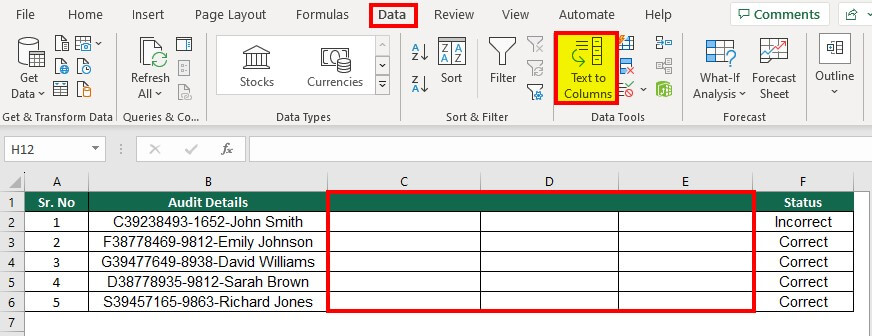
- Follow the instructions carefully to select your chosen formatting.
- Now, click ‘Finish’ button.
And you are done!
Bonus Tips:
- The Microsoft Word document is pasted into a single Excel cell, in the single-cell import process.
- The Excel resizes the grid to fit the cell that might be larger and display the data within the grid.
- This process is best for importing the whole Word document like proposals and you don’t require opening the Word document to perform the particular task.
- Well, the cell-by-cell data import process goes best for tables within the Word document.
- You can even edit the table’s contents, after pasting it into an Excel application.
Frequently Asked Questions:
How to Copy a Word Document into Excel Without Losing Formatting?
Firstly, press CTRL+C to copy the content of the Work document, then open a blank Excel document and press CRL+V. Now, to use the formatting applied, click Match Destination Formatting. Also, click Keep Source Formatting.
Why Is My Excel Not Pasting into Multiple Cells?
It might be possible that there are not sufficient columns to accept the data that you're trying to paste.
How to Get Data from Word to Excel Automatically?
By using Excel's Text Import Wizard method, you can get data from Word to Excel automatically. To do this, Save As word file as Plain Text >> open Excel, navigate to Data tab > From Text. In the Import Text File dialog box, choose the text file you need to import.
Summing Up
So, this is all about how to import data from Word to Excel document. All you need to do is to choose the method that best suits your needs based on the structure and complexity of your data in the Word document.
Thanks for reading…!

Priyanka Sahu

Priyanka is a content marketing expert. She writes tech blogs and has expertise in MS Office, Excel, and other tech subjects. Her distinctive art of presenting tech information in the easy-to-understand language is very impressive. When not writing, she loves unplanned travels.