
Stuck with the peculiar error message “The cell or chart you are trying to change is on a protected sheet to make a change unprotect…” when working on the Excel sheet? If yes, do not worry, you are on the correct webpage. This error typically indicates that Excel has determined the workbook to be potentially protected & is stopping it from being opened.
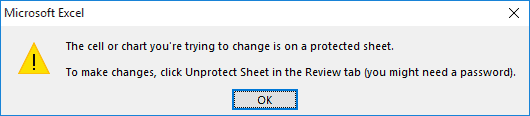
This guide focuses on practical solutions to fix this error for smooth calculations and operations.
To repair corrupt Excel file, we recommend this tool:
This software will prevent Excel workbook data such as BI data, financial reports & other analytical information from corruption and data loss. With this software you can rebuild corrupt Excel files and restore every single visual representation & dataset to its original, intact state in 3 easy steps:
- Try Excel File Repair Tool rated Excellent by Softpedia, Softonic & CNET.
- Select the corrupt Excel file (XLS, XLSX) & click Repair to initiate the repair process.
- Preview the repaired files and click Save File to save the files at desired location.
What Causes the Cell or Chart You Are Trying to Change Error in Excel?
For better resolution, it’s always essential to identify the major causes behind the problem. Likewise, this annoying error can be generated due to numerous reasons, including:
- Files downloaded from an unreliable source
- Excel workbook corruption
- Unsupported or incompatible file extension
- Corrupted Microsoft Office installation
- Using an outdated Excel program
- Insufficient permission
- Faulty add-ins
- Incorrect settings in MS Excel’s Trust Center.
How to Fix Excel the Cell or Chart You Are Trying to Change Is on A Protected Sheet Error?
Find out the possible methods to troubleshoot this error:
Method 1- Unprotect an Excel Sheet Safely
Since the spreadsheet is showing a protected sheet error when trying to access it, it is vital to first check and unprotect the sheet if protected.
To do so, follow the steps below and restore full editing access:
- Firstly, open the affected Excel worksheet.
- Next, go to the Review tab >> click Unprotect Sheet.

- Then, enter the correct password.

- Lastly, confirm to unlock all cells.
Also Read: Fixed- Office Has Detected A Problem With This File Protected View Error
Method 2- Check a File Compatibility
Most of the time, the file you downloaded from the internet does not support the current version of Excel. Hence, refuses to open it and shows “the cell or chart you are trying to change is on a protected sheet to make a change unprotect.”
Therefore, ensure your file is saved in .xlsm, .xlsx, or .xlsb, format only. But if it’s in older formats like .xls or .xml, change it by following the instructions below carefully:
- Open the file in Excel.
- Go to the File menu> Save As.
- Choose .xlsx >> save that workbook.

- Now, open the file to check for the problem.
Method 3- Unblock MS Excel File
Sometimes, a locked Excel file won’t allow you to access it properly, thus causing this error. Simply unblock the file to fix it.
Steps to be followed:
- Go to the folder where the faulty file is stored.
- Then, right-click on the file.
- Click Properties >> check the Unblock at the bottom.

- Finally, click Apply.
If this method fails to work, try the next one.
Method 4- Using Open & Repair Utility
As already mentioned above, Excel file corruption is another root cause for triggering this peculiar message. All you need to try the Excel’s built-in tool – Open and Repair to fix the file corruption issue along with the error.
Here’s how to use this feature:
- Open MS Excel, go to the File >> Open.
- Next, click on the Browse option to pick a corrupted file.
- Then, in an Open dialog box, choose a specific file that is corrupted.
- Now, click on the arrow next to an Open button >> Open and Repair.

- At this time, you will get a dialog box, click on the Repair
In case the Open and Repair tool fails to fix the damaged Excel file, you can opt for the Excel Repair Tool.
Steps to Utilize MS Excel Repair Tool







Method 5- Disable Faulty Add-ins to Fix Excel the Cell or Chart You Are Trying to Change Is on A Protected Sheet
It has been seen that many errors and issues are generated due to corrupted or faulty add-ins in Excel. Though temporarily disabling those add-ins can help you to bypass the current problem.
So, follow the steps:
- Open Excel >> click Options.
- Select the Add-Ins under the ‘Excel Options’ window.
- Now, select the COM Add-ins by expanding a ‘Manage’
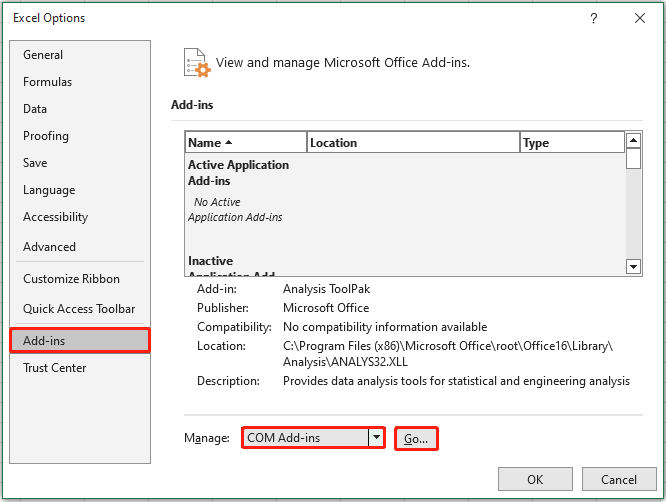
- At last, click Go button & uncheck all the COM Add-ins, then click OK.

Also Read: 8 Fixes for Excel “The File Couldn’t Open in Protected View” Error!
Method 6- Repair Microsoft Excel
Various types of Office malfunctioning including Excel the cell or chart you are trying to change is on a protected sheet error can be easily resolved with this repair process. Therefore, you must try this solution once.
- Go to Control Panel >> Program >> Programs and Feature tab.
- Select the Microsoft Office Suite from the list of installed applications.
- Once you get it make a right-click over it, and then from the drop-down menu. Click Change.
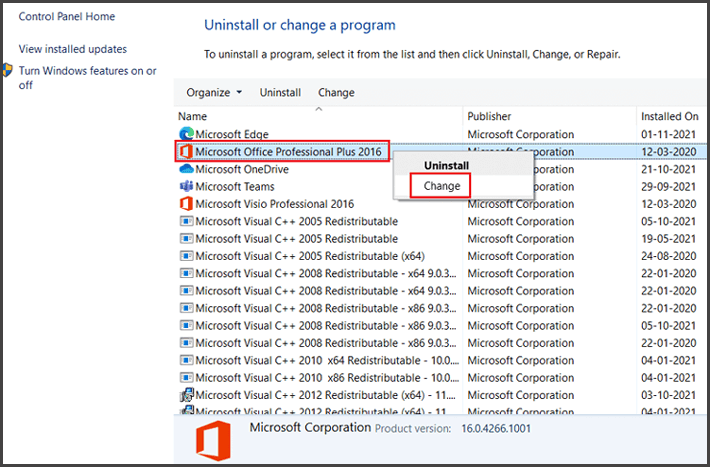
- In the next open window, you have to choose the “Repair”
Frequently Asked Questions:
To unprotect cells, you have to select the cell(s) >> from Ribbon, navigate to Format > unselect the Protect Cells.
There are various reasons why the Excel file opens in Protected View including, the file opened from an Internet location or the file is locked by a strong password.
To fix Protected View error in Excel, navigate to File >> Options >> Trust Center >> Trust Center Settings. After this, click on Protected View and uncheck the boxes for internet, unsafe locations, or Outlook attachments to tun it OFF.
To modify a protected cell or chart in Excel, select it in the Ranges unlocked by a password when spreadsheet is protected box >> select Modify. How to Unprotect a Cell in a Protected Sheet?
Why Is Excel Saying My Sheet Is Protected?
How to Fix Protected View Error on Excel?
How to Modify a Protected Cell or Chart in Excel?
Time to Verdict
Above, I have conferred some tried & tested tricks to fix the Excel the cell or chart you are trying to change is on a protected sheet error. Try them according to your niche to get rid of the error effectively.
In case the Microsoft Excel file is severely corrupted and displaying this error, simply use the best Excel Repair Software. This tool can fix multiple Excel worksheets without affecting the original formatting.
Thanks for reading!

Priyanka Sahu

Priyanka is a content marketing expert. She writes tech blogs and has expertise in MS Office, Excel, and other tech subjects. Her distinctive art of presenting tech information in the easy-to-understand language is very impressive. When not writing, she loves unplanned travels.