
In Microsoft Excel, borders are useful to make your worksheet data stand out. Nevertheless, when borders are no longer needed, they can create visual clutter. Hence, removing such unnecessary borders is necessary. In this helpful guide, I will show you how to remove border from Excel sheet to emphasize the essential information of the spreadsheet. Also, you will learn how to add borders in Excel with ease.
To fix corrupted Excel files, we recommend this tool:
This software will prevent Excel workbook data such as BI data, financial reports & other analytical information from corruption and data loss. With this software you can rebuild corrupt Excel files and restore every single visual representation & dataset to its original, intact state in 3 easy steps:
- Try Excel File Repair Tool rated Excellent by Softpedia, Softonic & CNET.
- Select the corrupt Excel file (XLS, XLSX) & click Repair to initiate the repair process.
- Preview the repaired files and click Save File to save the files at desired location.
Why Should I Remove Needless Borders from Excel?
Removing the unnecessary borders from an Excel sheet helps streamline data presentation & enhance readability. Moreover, it makes the sheet clutter-free with minimal or no borders and allows for a cleaner, more consistent look across documents.
How to Remove Border from Excel Sheet?
If you are eager to remove the border from an entire sheet, then you can follow the below instructions very carefully to get your job done:
- In an opened Excel sheet, click a “Select All” button which you can see at the top-left side corner of your sheet (the triangle between a row & column headers).
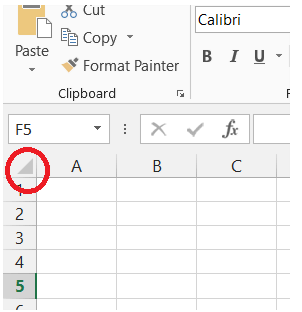
- After this, go to the “Home” tab >> click on “Borders” icon under a “Font” group.
- Now, choose the “No Border” option from a dropdown menu to eliminate all borders from a worksheet.

Also Read: How to Combine First and Last Name in Excel?- (4 Ways)
How to Remove Borders from Specific Cells in Excel?
If you want clear borders from exact cells in MS Excel, you have to follow the below steps:
- Select the range of cell(s) from which you need to clear the borders.
- In the Excel top ribbon, navigate to “Home” tab >> click on “Borders” icon under a “Font” group.

- Now, a dropdown menu will appear on the screen with border options.
- Choose “No Border” option to clear all borders from selected cells.
How to Add Border in Microsoft Excel?
Well, there is a straightforward way to add borders or border in an Excel sheet. Yes, by using Formatting Excel, you can do so. Just follow the below steps carefully:
- Open an Excel file >> press CTRL+A keys together. This will select the whole sheet.
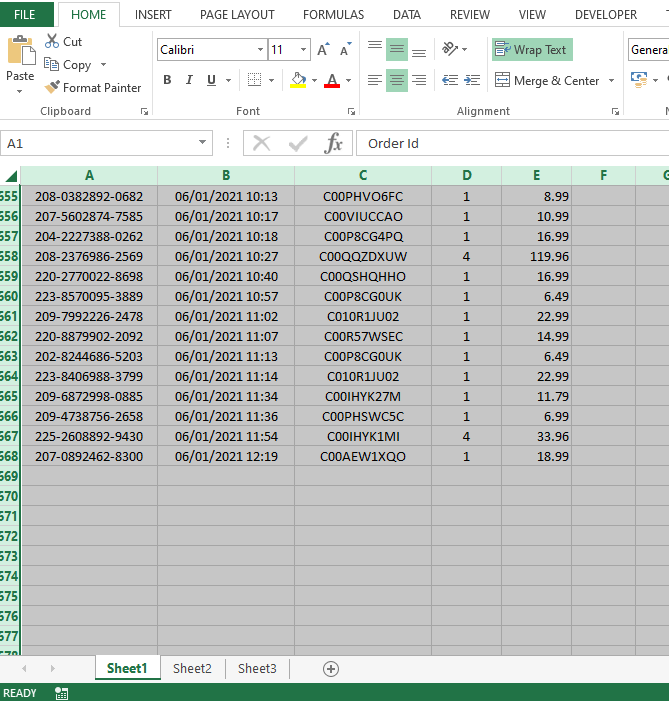
- Click Home tab >> click the Border> All Borders.
- Now, press CTRL+S to save the changes you have made and close.
How Do I Remove the Page Border in Excel?
Just like you, many users have asked the same question in the various forums and community websites that how they can remove the page border in the sheet. For this, it is crucial to follow these steps:
- Go to Design tab >> Page Borders.
- Under the Borders & Shading box, on a Page Border tab, you have to choose the arrow next to Apply to.
- Then, choose the page(s) you need to remove a border from.
- In the Setting, choose None >> then OK.
Related FAQs:
It is likely that your worksheet or workbook gets corrupted or the borders feature is disabled in Excel that’s why you are unable to see the borders in your Excel sheet.
To edit borders in Excel, select cell(s) that have a border & you want to change them. Then, right-click to select the Format Cells >> click the Border tab. Now, choose the border style, thicker styles, etc. from the Line box.
Ctrl+Shift_ helps to remove the external border from the selected Excel cells.
If you want to merge cell borders in Excel, follow these steps:
Select the cells that you need to format. Click the down arrow beside the ‘Borders’ button under the Font group on a Home tab. A drop-down menu seems, with all the border options you can apply to the cell selection. Why Are My Borders Not Showing in Excel?
How Do I Edit Borders in Excel?
Which Shortcut Key Is Used to Remove All Borders?
How Do I Merge Cell Borders in Excel?
How Do You Add a Default Border to All Sides of a Cell in Excel?
Time to Conclude
In conclusion, removing borders from Excel cells or sheets is vital for maintaining data integrity. However, you can easily do this by following the steps mentioned above in this post. Therefore, don’t get annoyed with such a thing from now onwards; just follow the step-by-step methods mentioned above for Excel VBA to remove borders from the sheet.
Thanks for reading!

Priyanka Sahu

Priyanka is a content marketing expert. She writes tech blogs and has expertise in MS Office, Excel, and other tech subjects. Her distinctive art of presenting tech information in the easy-to-understand language is very impressive. When not writing, she loves unplanned travels.